CALL FUNCTION 'CONVERSION_EXIT_ALPHA_INPUT'
EXPORTING
INPUT = LT_BANFN
IMPORTING
OUTPUT = LT_BANFN.
2013年10月30日 星期三

2013年10月26日 星期六
SAP : submit program (Calling Executable Programs example)
submit ZRCO007 and return
VIA SELECTION-SCREEN "此行會讓user要手動run外部程式(手動按F8)
EXPORTING LIST TO MEMORY "此行會使WRITE LIST不會顯示在螢幕上,而是放到memory
with selection-table seltab. "將所有selection screen的參數全部經由seltab參數傳給程式執行
example:
*&---------------------------------------------------------------------*
*& Report YTEST
*&
*&---------------------------------------------------------------------*
*&
*&
*&---------------------------------------------------------------------*
REPORT YTEST.
data: seltab type table of rsparams,
seltab_wa like line of seltab.
seltab_wa-selname = 'P_KOKRS'.
seltab_wa-kind = 'P'.
seltab_wa-low = 'BS00'.
append seltab_wa to seltab.
seltab_wa-selname = 'P_BUKRS'.
seltab_wa-kind = 'P'.
seltab_wa-low = '1000'.
append seltab_wa to seltab.
seltab_wa-selname = 'P_WERKS'.
seltab_wa-kind = 'P'.
seltab_wa-low = '1000'.
append seltab_wa to seltab.
seltab_wa-selname = 'P_YM'.
seltab_wa-kind = 'P'.
* seltab_wa-low = sy-datum+0(6).
seltab_wa-low = '201003'.
append seltab_wa to seltab.
seltab_wa-selname = 'P_ACTPR'.
seltab_wa-kind = 'P'.
seltab_wa-low = 'X'.
append seltab_wa to seltab.
seltab_wa-selname = 'AUFNR'.
seltab_wa-kind = 'S'.
seltab_wa-sign = 'I'.
seltab_wa-option = 'EQ'.
* seltab_wa-low = 'B6MSD8-13068'.
seltab_wa-low = '1000056'.
append seltab_wa to seltab.
seltab_wa-selname = 'R_BUDAT'.
seltab_wa-kind = 'S'.
seltab_wa-sign = 'I'.
seltab_wa-option = 'BT'.
seltab_wa-low = '20130301'.
seltab_wa-high = '20130331'.
* seltab_wa-low = '20130901'.
* seltab_wa-high = '20130930'.
append seltab_wa to seltab.
submit ZRCO007 and return
* VIA SELECTION-SCREEN
with selection-table seltab.
2013年10月25日 星期五
2013年10月21日 星期一
Activate &SAP_EDIT in SE16N (SAP ECC 6.0 EHP6)
http://tsapanoglou.wordpress.com/2012/10/10/activate-sap_edit-in-se16n-sap-ecc-6-0-ehp6/
Activate &SAP_EDIT in SE16N (SAP ECC 6.0 EHP6)
In SAP ECC 6.0 EHP6, the function code&SAP_EDIT, which enables the change mode of transaction SE16N, is deactivated (SAP Note 1420281) due to security breaches that were detected. In order to activate it (temporarily), follow the steps below:
- Go to SE16N, as usual, and type the table for which you want to make modifications.
- Instead of typing
&SAP_EDITin the command field, type/Hand press “Enter” key to activate debugging. - Press F8 key to enter the data browser for the above table.
- While in debugging mode, enter the two variables GD-EDIT and GD-SAPEDIT and press “Enter” key.
- For each variable, click on the change button, change the value to an uppercase “X” and press “Enter” key.
- Press F8 key to exit debugging and enter the table in change mode.
2013年10月16日 星期三
SAP FI Validation : OB28 menu path
http://ierp.us/sap-spro/sap_configuration_spro_img.php?id=4594
01. SAP Customizing Implementation Guide
02.-- Financial Accounting
03.---- Financial Accounting Global Settings
04.------ Document
05.-------- Document Header
06.---------- Validation in Accounting Documents - S_ALR_87003696
01. SAP Customizing Implementation Guide
02.-- Financial Accounting
03.---- Financial Accounting Global Settings
04.------ Document
05.-------- Document Header
06.---------- Validation in Accounting Documents - S_ALR_87003696
2013年10月10日 星期四
BAPI_ACC_DOCUMENT_POST enhancement
緣起:
由於一般費用請款需要上傳tax,而user又要求tax要註明憑證資訊;偏偏 BAPI_ACC_DOCUMENT_POST根本就沒有tax 的item text欄位可以填...不得以之下,只好動用BAPI_ACC_DOCUMENT_POST的EXTENSION1這個table來輔助上傳tax item_text。
步驟:
1. 首先客製Z_ACC_DOCUMENT_POST,呼叫 BAPI_ACC_DOCUMENT_POST
FUNCTION Z_ACC_DOCUMENT_POST.
*"----------------------------------------------------------------------
*"*"Local Interface:
*" IMPORTING
*" VALUE(I_DOCUMENTHEADER) TYPE BAPIACHE09
*" VALUE(I_CUSTOMERCPD) TYPE BAPIACPA09 OPTIONAL
*" VALUE(I_CONTRACTHEADER) TYPE BAPIACCAHD OPTIONAL
*" EXPORTING
*" VALUE(E_OBJ_TYPE) TYPE BAPIACHE09-OBJ_TYPE
*" VALUE(E_OBJ_KEY) TYPE BAPIACHE09-OBJ_KEY
*" VALUE(E_OBJ_SYS) TYPE BAPIACHE09-OBJ_SYS
*" TABLES
*" T_ACCOUNTGL STRUCTURE BAPIACGL09 OPTIONAL
*" T_ACCOUNTRECEIVABLE STRUCTURE BAPIACAR09 OPTIONAL
*" T_ACCOUNTPAYABLE STRUCTURE BAPIACAP09 OPTIONAL
*" T_ACCOUNTTAX STRUCTURE BAPIACTX09 OPTIONAL
*" T_CURRENCYAMOUNT STRUCTURE BAPIACCR09
*" T_CRITERIA STRUCTURE BAPIACKEC9 OPTIONAL
*" T_VALUEFIELD STRUCTURE BAPIACKEV9 OPTIONAL
*" T_EXTENSION1 STRUCTURE BAPIACEXTC OPTIONAL
*" T_RETURN STRUCTURE BAPIRET2
*" T_PAYMENTCARD STRUCTURE BAPIACPC09 OPTIONAL
*" T_CONTRACTITEM STRUCTURE BAPIACCAIT OPTIONAL
*" T_EXTENSION2 STRUCTURE BAPIPAREX OPTIONAL
*" T_REALESTATE STRUCTURE BAPIACRE09 OPTIONAL
*" T_ACCOUNTWT STRUCTURE BAPIACWT09 OPTIONAL
*"----------------------------------------------------------------------
data l_ok type char0001.
call function 'BAPI_ACC_DOCUMENT_POST'
exporting
DOCUMENTHEADER = I_DOCUMENTHEADER
CUSTOMERCPD = I_CUSTOMERCPD
CONTRACTHEADER = I_CONTRACTHEADER
importing
OBJ_TYPE = E_OBJ_TYPE
OBJ_KEY = E_OBJ_KEY
OBJ_SYS = E_OBJ_SYS
tables
ACCOUNTGL = T_ACCOUNTGL
ACCOUNTRECEIVABLE = T_ACCOUNTRECEIVABLE
ACCOUNTPAYABLE = T_ACCOUNTPAYABLE
ACCOUNTTAX = T_ACCOUNTTAX
CURRENCYAMOUNT = T_CURRENCYAMOUNT
CRITERIA = T_CRITERIA
VALUEFIELD = T_VALUEFIELD
EXTENSION1 = T_EXTENSION1
RETURN = T_RETURN
PAYMENTCARD = T_PAYMENTCARD
CONTRACTITEM = T_CONTRACTITEM
EXTENSION2 = T_EXTENSION2
REALESTATE = T_REALESTATE
ACCOUNTWT = T_ACCOUNTWT.
l_ok = '1'.
loop at t_return.
if t_return-type = 'E'.
l_ok = '0'.
endif.
endloop.
if l_ok = '1'.
call function 'BAPI_TRANSACTION_COMMIT'
exporting
wait = 'X'.
endif.
ENDFUNCTION.
2.上傳example
T_ACCOUNTGL
ITEMNO_ACC 0000000010
GL_ACCOUNT 67390010
ITEM_TEXT TEST -消耗品
DOC_TYPE SA
COMP_CODE 1000
BUS_AREA 1000
PSTNG_DATE 2013/10/09
VALUE_DATE 2013/10/09
T_ACCOUNTPAYABLE
ITEMNO_ACC 0000000020
VENDOR_NO 100696
COMP_CODE 1000
BUS_AREA 1000
PMNTTRMS M030
BLINE_DATE 2013/10/09
ITEM_TEXT TEST -消耗品
T_ACCOUNTTAX
ITEMNO_ACC 0000000030
GL_ACCOUNT 12640010
TAX_CODE 21
ITEMNO_TAX 000010
T_CURRENCYAMOUNT
ITEMNO_ACC 0000000010
CURRENCY_ISO TWD
AMT_DOCCUR 1,000.0000
ITEMNO_ACC 0000000020
CURRENCY_ISO TWD
AMT_DOCCUR 1,050.0000-
DISC_BASE 210.0000-
ITEMNO_ACC 0000000030
CURRENCY_ISO TWD
AMT_DOCCUR 50.0000
AMT_BASE 1,000.0000
T_EXTENSION1
FIELD1 30
FIELD2 SGTXT
FIELD3 ZE10000000 1021001 86378995
FIELD4
3.copy SAMPLE_INTERFACE_RWBAPI01 to ZSAMPLE_INTERFACE_RWBAPI01,並implement code:
data: wa like IT_ACCIT,
i type i value 0,
wa_e like EXTENSION,
ind type sy-tabix.
loop at EXTENSION into wa_e.
read table IT_ACCIT with key POSNR = wa_e-field1 into wa.
ind = sy-tabix.
if wa_e-field2 eq 'SGTXT'.
wa-SGTXT = wa_e-field3.
modify IT_ACCIT from wa index ind.
i = i + 1.
endif.
endloop.
4.客製IMG(在各client都要做,無法transport)


5. 結果

由於一般費用請款需要上傳tax,而user又要求tax要註明憑證資訊;偏偏 BAPI_ACC_DOCUMENT_POST根本就沒有tax 的item text欄位可以填...不得以之下,只好動用BAPI_ACC_DOCUMENT_POST的EXTENSION1這個table來輔助上傳tax item_text。
步驟:
1. 首先客製Z_ACC_DOCUMENT_POST,呼叫 BAPI_ACC_DOCUMENT_POST
FUNCTION Z_ACC_DOCUMENT_POST.
*"----------------------------------------------------------------------
*"*"Local Interface:
*" IMPORTING
*" VALUE(I_DOCUMENTHEADER) TYPE BAPIACHE09
*" VALUE(I_CUSTOMERCPD) TYPE BAPIACPA09 OPTIONAL
*" VALUE(I_CONTRACTHEADER) TYPE BAPIACCAHD OPTIONAL
*" EXPORTING
*" VALUE(E_OBJ_TYPE) TYPE BAPIACHE09-OBJ_TYPE
*" VALUE(E_OBJ_KEY) TYPE BAPIACHE09-OBJ_KEY
*" VALUE(E_OBJ_SYS) TYPE BAPIACHE09-OBJ_SYS
*" TABLES
*" T_ACCOUNTGL STRUCTURE BAPIACGL09 OPTIONAL
*" T_ACCOUNTRECEIVABLE STRUCTURE BAPIACAR09 OPTIONAL
*" T_ACCOUNTPAYABLE STRUCTURE BAPIACAP09 OPTIONAL
*" T_ACCOUNTTAX STRUCTURE BAPIACTX09 OPTIONAL
*" T_CURRENCYAMOUNT STRUCTURE BAPIACCR09
*" T_CRITERIA STRUCTURE BAPIACKEC9 OPTIONAL
*" T_VALUEFIELD STRUCTURE BAPIACKEV9 OPTIONAL
*" T_EXTENSION1 STRUCTURE BAPIACEXTC OPTIONAL
*" T_RETURN STRUCTURE BAPIRET2
*" T_PAYMENTCARD STRUCTURE BAPIACPC09 OPTIONAL
*" T_CONTRACTITEM STRUCTURE BAPIACCAIT OPTIONAL
*" T_EXTENSION2 STRUCTURE BAPIPAREX OPTIONAL
*" T_REALESTATE STRUCTURE BAPIACRE09 OPTIONAL
*" T_ACCOUNTWT STRUCTURE BAPIACWT09 OPTIONAL
*"----------------------------------------------------------------------
data l_ok type char0001.
call function 'BAPI_ACC_DOCUMENT_POST'
exporting
DOCUMENTHEADER = I_DOCUMENTHEADER
CUSTOMERCPD = I_CUSTOMERCPD
CONTRACTHEADER = I_CONTRACTHEADER
importing
OBJ_TYPE = E_OBJ_TYPE
OBJ_KEY = E_OBJ_KEY
OBJ_SYS = E_OBJ_SYS
tables
ACCOUNTGL = T_ACCOUNTGL
ACCOUNTRECEIVABLE = T_ACCOUNTRECEIVABLE
ACCOUNTPAYABLE = T_ACCOUNTPAYABLE
ACCOUNTTAX = T_ACCOUNTTAX
CURRENCYAMOUNT = T_CURRENCYAMOUNT
CRITERIA = T_CRITERIA
VALUEFIELD = T_VALUEFIELD
EXTENSION1 = T_EXTENSION1
RETURN = T_RETURN
PAYMENTCARD = T_PAYMENTCARD
CONTRACTITEM = T_CONTRACTITEM
EXTENSION2 = T_EXTENSION2
REALESTATE = T_REALESTATE
ACCOUNTWT = T_ACCOUNTWT.
l_ok = '1'.
loop at t_return.
if t_return-type = 'E'.
l_ok = '0'.
endif.
endloop.
if l_ok = '1'.
call function 'BAPI_TRANSACTION_COMMIT'
exporting
wait = 'X'.
endif.
ENDFUNCTION.
2.上傳example
T_ACCOUNTGL
ITEMNO_ACC 0000000010
GL_ACCOUNT 67390010
ITEM_TEXT TEST -消耗品
DOC_TYPE SA
COMP_CODE 1000
BUS_AREA 1000
PSTNG_DATE 2013/10/09
VALUE_DATE 2013/10/09
T_ACCOUNTPAYABLE
ITEMNO_ACC 0000000020
VENDOR_NO 100696
COMP_CODE 1000
BUS_AREA 1000
PMNTTRMS M030
BLINE_DATE 2013/10/09
ITEM_TEXT TEST -消耗品
T_ACCOUNTTAX
ITEMNO_ACC 0000000030
GL_ACCOUNT 12640010
TAX_CODE 21
ITEMNO_TAX 000010
T_CURRENCYAMOUNT
ITEMNO_ACC 0000000010
CURRENCY_ISO TWD
AMT_DOCCUR 1,000.0000
ITEMNO_ACC 0000000020
CURRENCY_ISO TWD
AMT_DOCCUR 1,050.0000-
DISC_BASE 210.0000-
ITEMNO_ACC 0000000030
CURRENCY_ISO TWD
AMT_DOCCUR 50.0000
AMT_BASE 1,000.0000
T_EXTENSION1
FIELD1 30
FIELD2 SGTXT
FIELD3 ZE10000000 1021001 86378995
FIELD4
3.copy SAMPLE_INTERFACE_RWBAPI01 to ZSAMPLE_INTERFACE_RWBAPI01,並implement code:
data: wa like IT_ACCIT,
i type i value 0,
wa_e like EXTENSION,
ind type sy-tabix.
loop at EXTENSION into wa_e.
read table IT_ACCIT with key POSNR = wa_e-field1 into wa.
ind = sy-tabix.
if wa_e-field2 eq 'SGTXT'.
wa-SGTXT = wa_e-field3.
modify IT_ACCIT from wa index ind.
i = i + 1.
endif.
endloop.
4.客製IMG(在各client都要做,無法transport)
5. 結果
2013年9月30日 星期一
F-02 的替代BAPI
1) BAPI_ACC_DOCUMENT_POST
2) BAPI_ACC_GL_POSTING_POST:
不過這只能使用posting key 40/50
40 : positive number
50 : negative number
http://scn.sap.com/message/1512737#1512737
data:
obj_type like bapiache02-obj_type,
obj_key like bapiache02-obj_key,
obj_sys like bapiache02-obj_sys,
documentheader like bapiache08,
accountgl like bapiacgl08
occurs 0 with header line,
currencyamount like bapiaccr08
occurs 0 with header line,
return like bapiret2
occurs 0 with header line,
extension1 like bapiextc
occurs 0 with header line,
t_edidd like edidd occurs 0 with header line,
bapi_retn_info like bapiret2 occurs 0 with header line.
data: error_flag.
*documentheader-obj_type = 'BKPFF'.
*documentheader-obj_key = '18000000002002004'.
*documentheader-obj_type = 'BKPFF'.
*documentheader-obj_key = '180000000010002004'.
*documentheader-obj_sys = 'RD1CLNT200'.
documentheader-username = sy-uname.
documentheader-header_txt = 'Test using BAPI'.
documentheader-comp_code = '1000'.
*documentheader-ac_doc_no
*documentheader-fisc_year = '2005'.
documentheader-doc_date = sy-datum.
documentheader-pstng_date = sy-datum.
*documentheader-trans_date
*documentheader-fis_period
documentheader-doc_type = 'SA'.
*documentheader-ref_doc_no
*documentheader-compo_acc
*documentheader-reason_rev
accountgl-itemno_acc = '1'.
accountgl-gl_account = '0000160100'.
accountgl-comp_code = '1000'.
accountgl-pstng_date = sy-datum.
accountgl-doc_type = 'SA'.
accountgl-profit_ctr = '0000010000'.
append accountgl.
accountgl-itemno_acc = '2'.
accountgl-gl_account = '0000160100'.
accountgl-comp_code = '1000'.
accountgl-pstng_date = sy-datum.
accountgl-doc_type = 'SA'.
accountgl-profit_ctr = '0000010000'.
append accountgl.
*AC_DOC_NO
*FISC_YEAR
*FIS_PERIOD
*accountgl-STAT_CON = 'X'.
*REF_KEY_1
*REF_KEY_2
*REF_KEY_3
*CUSTOMER
*VENDOR_NO
*ALLOC_NMBR
*ITEM_TEXT
*BUS_AREA
*COSTCENTER
*ACTTYPE
*ORDERID
*ORIG_GROUP
*COST_OBJ
*PROFIT_CTR
*PART_PRCTR
*WBS_ELEMENT
*NETWORK
*ROUTING_NO
*ORDER_ITNO
currencyamount-itemno_acc = '1'.
currencyamount-currency = 'GBP'.
currencyamount-amt_doccur = '100.00'.
append currencyamount.
currencyamount-itemno_acc = '2'.
currencyamount-currency = 'GBP'.
currencyamount-amt_doccur = '-100.00'.
append currencyamount.
exporting
documentheader = documentheader
accountgl = accountgl
currencyamount = currencyamount
return = return
extension1 = extension1
exceptions
others = 1.
if sy-subrc <> 0.
message e999(re) with 'Problem occured'.
else.
loop at return.
if not return is initial.
clear bapi_retn_info.
move-corresponding return to bapi_retn_info.
if return-type = 'A' or return-type = 'E'.
error_flag = 'X'.
endif.
append bapi_retn_info.
endif.
endloop.
if error_flag = 'X'.
message e999(re) with 'Problem occured'.
rollback work.
else.
commit work.
endif.
endif.
最後別忘了加上bapi_transaction_commit
2) BAPI_ACC_GL_POSTING_POST:
不過這只能使用posting key 40/50
40 : positive number
50 : negative number
http://scn.sap.com/message/1512737#1512737
data:
obj_type like bapiache02-obj_type,
obj_key like bapiache02-obj_key,
obj_sys like bapiache02-obj_sys,
documentheader like bapiache08,
occurs 0 with header line,
currencyamount like bapiaccr08
occurs 0 with header line,
return like bapiret2
occurs 0 with header line,
extension1 like bapiextc
occurs 0 with header line,
bapi_retn_info like bapiret2 occurs 0 with header line.
data: error_flag.
*documentheader-obj_key = '18000000002002004'.
*documentheader-obj_type = 'BKPFF'.
*documentheader-obj_key = '180000000010002004'.
documentheader-header_txt = 'Test using BAPI'.
documentheader-comp_code = '1000'.
*documentheader-fisc_year = '2005'.
documentheader-pstng_date = sy-datum.
*documentheader-fis_period
*documentheader-compo_acc
*documentheader-reason_rev
accountgl-gl_account = '0000160100'.
accountgl-comp_code = '1000'.
accountgl-pstng_date = sy-datum.
accountgl-doc_type = 'SA'.
accountgl-profit_ctr = '0000010000'.
append accountgl.
accountgl-gl_account = '0000160100'.
accountgl-comp_code = '1000'.
accountgl-pstng_date = sy-datum.
accountgl-doc_type = 'SA'.
accountgl-profit_ctr = '0000010000'.
append accountgl.
*FISC_YEAR
*FIS_PERIOD
*accountgl-STAT_CON = 'X'.
*REF_KEY_1
*REF_KEY_2
*REF_KEY_3
*CUSTOMER
*VENDOR_NO
*ALLOC_NMBR
*ITEM_TEXT
*BUS_AREA
*COSTCENTER
*ACTTYPE
*ORDERID
*ORIG_GROUP
*COST_OBJ
*PROFIT_CTR
*PART_PRCTR
*WBS_ELEMENT
*NETWORK
*ROUTING_NO
*ORDER_ITNO
currencyamount-currency = 'GBP'.
currencyamount-amt_doccur = '100.00'.
append currencyamount.
currencyamount-currency = 'GBP'.
currencyamount-amt_doccur = '-100.00'.
append currencyamount.
- call BAPI-function in this system
exporting
documentheader = documentheader
- importing
- obj_type = obj_type
- obj_key = obj_key
- obj_sys = obj_sys
accountgl = accountgl
currencyamount = currencyamount
return = return
extension1 = extension1
exceptions
others = 1.
if sy-subrc <> 0.
message e999(re) with 'Problem occured'.
else.
loop at return.
if not return is initial.
clear bapi_retn_info.
move-corresponding return to bapi_retn_info.
if return-type = 'A' or return-type = 'E'.
error_flag = 'X'.
endif.
append bapi_retn_info.
endif.
endloop.
if error_flag = 'X'.
message e999(re) with 'Problem occured'.
rollback work.
else.
commit work.
endif.
endif.
最後別忘了加上bapi_transaction_commit
2013年9月25日 星期三
Function Module : SAVE_TEXT
SAVEMODE_DIRECT = 'X' 就可以直接save
L_HEADER-TDOBJECT = 'BELEG'.
L_HEADER-TDID = '0002'.
L_HEADER-TDSPRAS = 'EN'.
call function 'SAVE_TEXT'
exporting
HEADER = L_HEADER
SAVEMODE_DIRECT = 'X'
tables
LINES = T_LINE[].
L_HEADER-TDOBJECT = 'BELEG'.
L_HEADER-TDID = '0002'.
L_HEADER-TDSPRAS = 'EN'.
call function 'SAVE_TEXT'
exporting
HEADER = L_HEADER
SAVEMODE_DIRECT = 'X'
tables
LINES = T_LINE[].
2013年9月2日 星期一
to enhance the standard MIRO detail screen and add the new custom Tab and custom fields
http://help-sap.blogspot.tw/2012/07/steps-to-add-custom-tab-in-standard.html


BADI
MRM_ITEM_CUSTFIELDS can be used to
enhance the standard MIRO detail screen and add the new custom Tab and custom fields in MIRO line items screen.
BADI implementation
steps and configuration of custom subscreen:
1)
BADI MRM_ITEM_CUSTFIELDS is
to be
implemented. Implementation of this BADI is bit tricky which is covered
in this blog. We have to create one custom implementation to add the new
custom
fields. There are five methods TABPAGE_LABEL_SET, INVOICE_DATA_TRANSFER,
CUSTOM_DATA_TRANSFER,
CUSTOM_DATA_GET and INVOICE_DATA_GET to add the Tab and name it and to
set and
get data to and from MIRO line details screen.

Method
TABPAGE_LABEL_SET

Method
INVOICE_DATA_TRANSFER

Method
CUSTOM_DATA_TRANSFER

Method
CUSTOM_DATA_GET

Method
INVOICE_DATA_GET

2)
We have to configure Subscreens for the new custom fields.
Go
to the Subscreens Tab in the created Implementation.
The
Subscreen call program should be SAPLMR1M. The Screen number should be ‘6050’. The Subscreen area should be ‘CUSTOM_DATA’. The Program called ‘SAPLZO_CUSTOM_FLD_IN_MIRO_LINE’ is
custom module pool program which is a copy of standard SAP example program ‘SAPLIDNL_WKA’ (check for SAP example in SE18).

The
Screen Number is 200 will hold the new tab
and the custom fields, which is present in called program ‘SAPLZO_CUSTOM_FLD_IN_MIRO_LINE’.
Append new custom
fields:
Say
the new fields are ZZ_ALLOWANCE and ZZ_UNITPRICE. Since these two fields are to
be added to the MIRO line, we have to be append these fields into table RSEG, structures
DRSEG_CI and CI_DRSEG_CUST (as shown
below). A new structure and table type is also created to hold the
screen data. These structures and tables would be used in the BADI
implementation and custom program screen to add the new fields in the MIRO
screen.


Code snippet to
enhance the screen:
As
mentioned earlier, we have to create a module pool custom program and attach as
sub-screen. For the ease of development, we can copy the SAP standard program SAPLIDNL_WKA
and change in that program.
Remove
the fields from the example screen and create a new structure to add the custom
fields which we want in MIRO line item.
In
this case, we created a new structure ZOS_DRSEG_WKA and replaced the SAP
structure DRSEG_WKA.


The
standard SAP example is showing fields ENH_DATE1, ENH_DATE2, ENH_CHAR1,
ENH_CHAR2, ENH_PERCENT and ENH_NUMC1. We have removed these fields and added the new custom fields
as highlighted below.

Result of the above implementation
With the above simple steps,
you would be able to enhance the standard SAP MIRO Detail screen. New custom Tab 'Dropship' is added with custom fields.

The custom fields would be saved in the standard
SAP table RSEG.

SAP Implicit enhancement
http://www.sapdev.co.uk/enhance/eframework/ef_implicit.htm
Implicit enhancement points are basically points within ABAP code where
an enhancement point is implied, and in which case can be created.
Examples of implicit enhancement points are at the beginning and end of
FORM�s, at the end of a program, include or function module etc. Below
is a step by step demonstration of how to create and implicit
enhancement point.
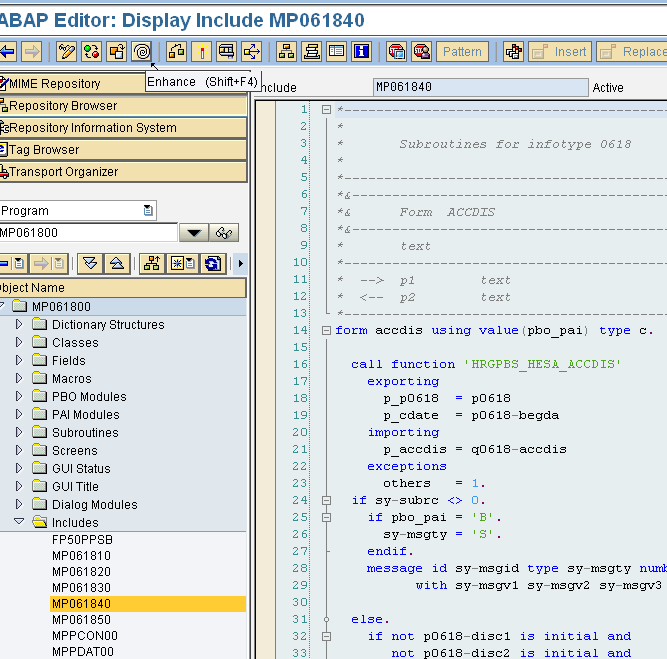
Step 1 - Activate the enhancement functionality
Within SE80 open up the program/include you want to enhance and click on the enhancement button (show below)
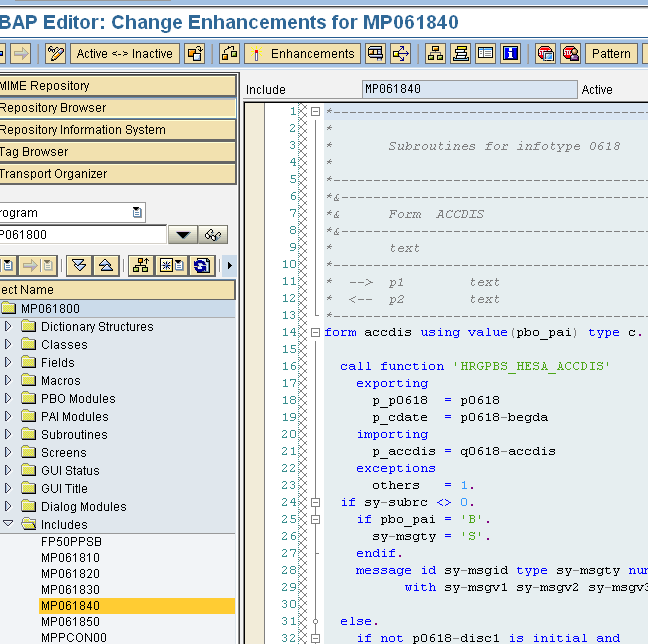
Step 2 - Enhancement functionality activated
The SE80 screen will now look something like below!
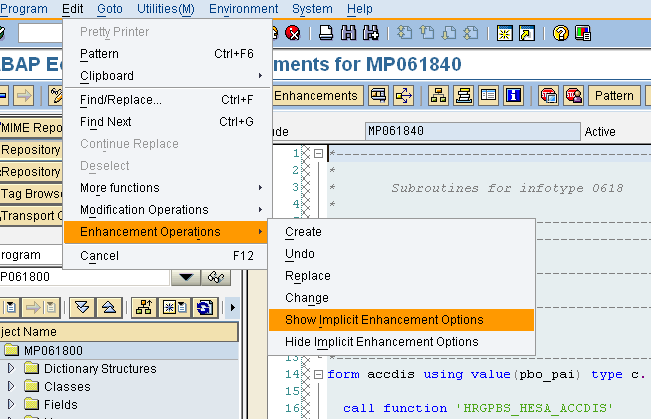
Step 3 - Show implict enhancement points
Goto menu 'edit->Enhamcement Operations->Show Implicit Enhancement Options' to display implicit enhancement points within the ABAP code
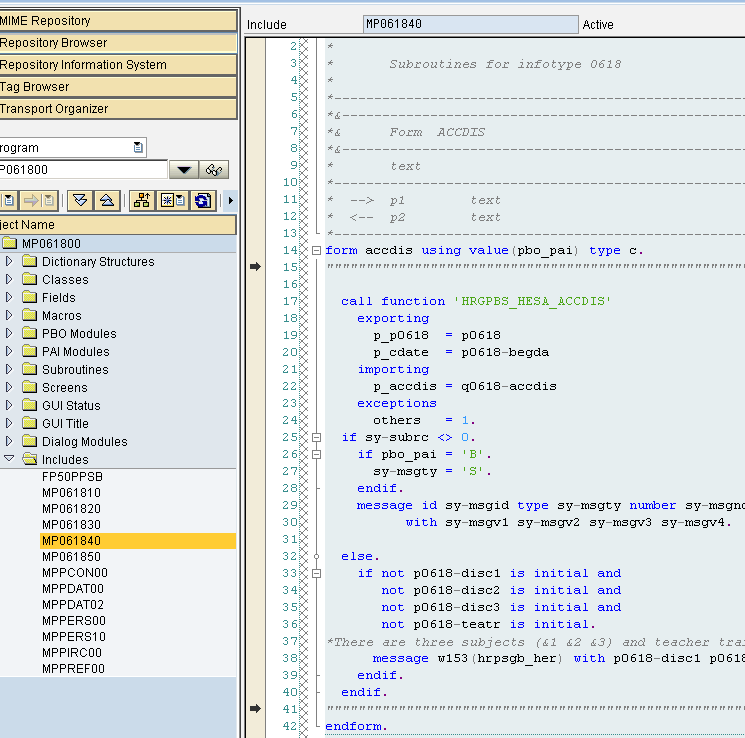
Step 4 - Enhancement points with the code
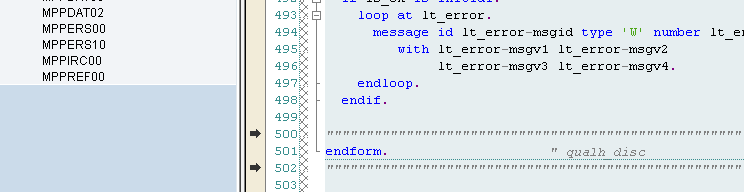
Once you have done this you will be able to see all the implicit enhancement points available within you code, these are denoted by the line of quotation marks and the black arrow at the start. In this example there are enhancement points at the start and end of each form and one at the very end of the include.
Step 5 - Create an implicit enhamcement point
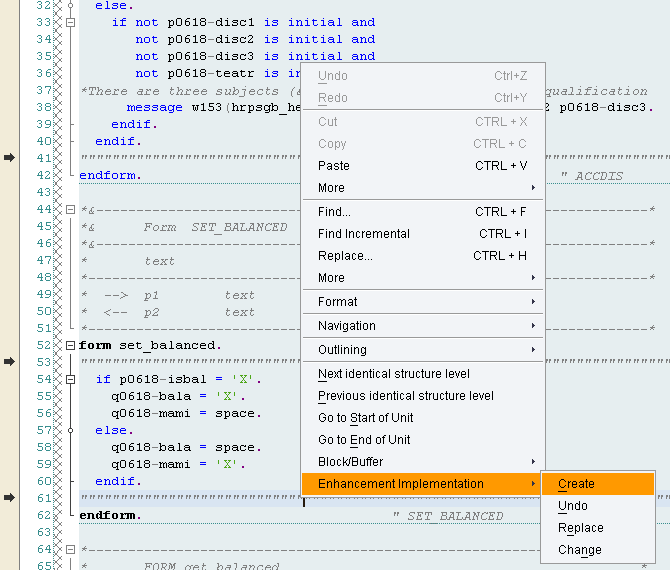
Inorder to implement an implicit enhancement point simply right click on the required enhamcement point and select 'Enhancement Implementation->create'.
Step 6 - Enhamcement point type
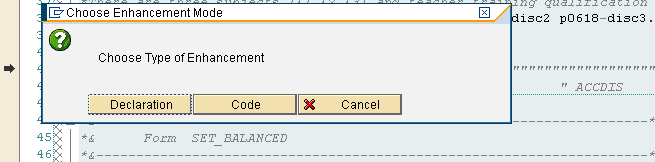
Next click on the code button to create a code implementation
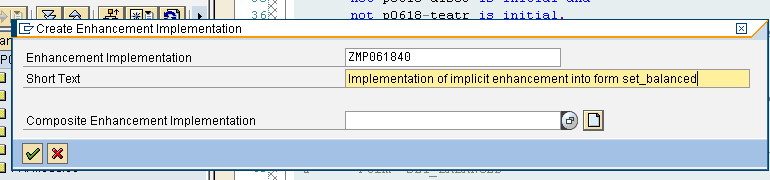
Step 7 - Name and description
Next give the enhancement point a name and description. Click the green tick
Step 8 - Change request
Assign change to a change request in the usual way
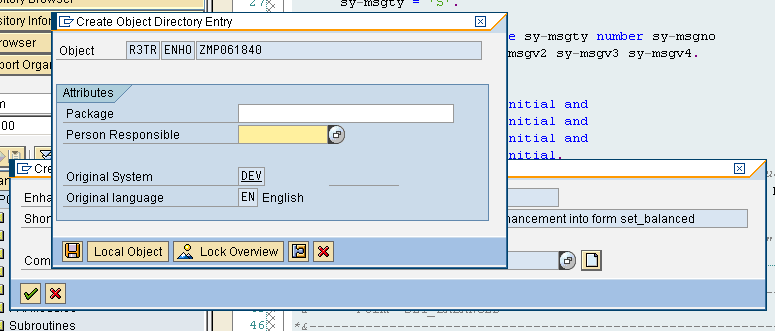
Step 9 - Enhancement point created
The enhamcement point will now have been created in the appropriate place. Denoted by the ENHANCEMENT...ENDENHANCEMENT tags
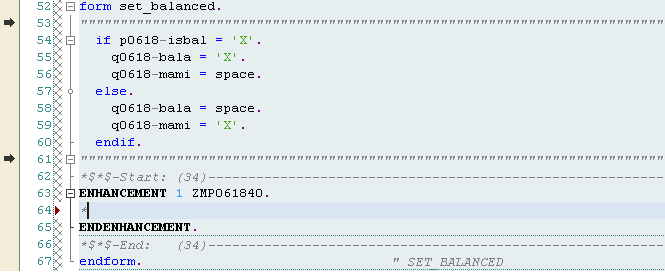
Step 10 - Enter code into enhancement
You can now enter your own code into the enhancement point!
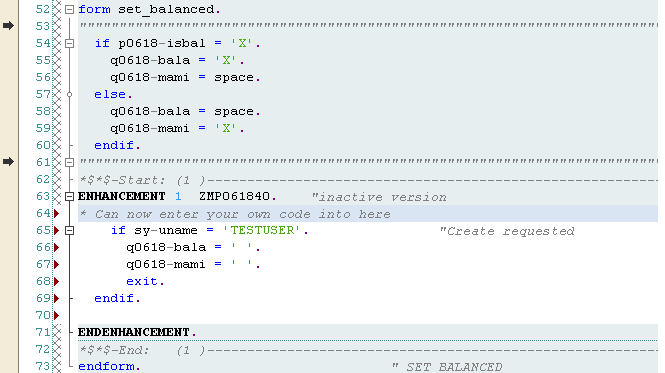
Step 11 - Activate the enhancement point
Click the 'Activate Enhancements' button to activate it.

Step 12 - Turn enhancement mode off
Now click the 'Active <-> inactive' button to turn enhancement mode off and return to standard SE80

SAP Implicit enhancement points - Changing standard SAP code using the ABAP implicit enhamcement code points
Step 1 - Activate the enhancement functionality
Within SE80 open up the program/include you want to enhance and click on the enhancement button (show below)
Step 2 - Enhancement functionality activated
The SE80 screen will now look something like below!
Step 3 - Show implict enhancement points
Goto menu 'edit->Enhamcement Operations->Show Implicit Enhancement Options' to display implicit enhancement points within the ABAP code
Step 4 - Enhancement points with the code
Once you have done this you will be able to see all the implicit enhancement points available within you code, these are denoted by the line of quotation marks and the black arrow at the start. In this example there are enhancement points at the start and end of each form and one at the very end of the include.
Step 5 - Create an implicit enhamcement point
Inorder to implement an implicit enhancement point simply right click on the required enhamcement point and select 'Enhancement Implementation->create'.
Step 6 - Enhamcement point type
Next click on the code button to create a code implementation
Step 7 - Name and description
Next give the enhancement point a name and description. Click the green tick
Step 8 - Change request
Assign change to a change request in the usual way
Step 9 - Enhancement point created
The enhamcement point will now have been created in the appropriate place. Denoted by the ENHANCEMENT...ENDENHANCEMENT tags
Step 10 - Enter code into enhancement
You can now enter your own code into the enhancement point!
Step 11 - Activate the enhancement point
Click the 'Activate Enhancements' button to activate it.
Step 12 - Turn enhancement mode off
Now click the 'Active <-> inactive' button to turn enhancement mode off and return to standard SE80
2013年3月31日 星期日
How to find User Exit for any T. Code
http://scn.sap.com/community/erp/manufacturing-pp/blog
Bellow are the steps to find the user exit for any T. Code:
Process 1:
Step 1: Go to T. Code: SE93. Enter the T. Code for which you want to search User Exit.
In our scenario we will take CO11N.

Step 2: Hit Display:

Step 3: Take the Package: CORU. Now go to T. Code: SMOD.

Step 4: Press F4 in enhancement.

Step
5: Press the button information system and then enter the package name
in the pop-up screen (Repository Info System: Find Exits)

Step 6: Press enter and you will get a list User Exit with description.

so, this is how User Exits cab be found for any T. Code.
Process 2:
Alternatively:
Step 1: Go to T. Code: CO11N (same as above example)

Step 2: Select the “systems” in the menu bar. Choose “status.”

Step 3: Double click the field Transaction: CO11N, you will get the below screen from where pick the Package.

Step 4: After you have got the package name follow the same in Step 3 to Step 6 mentioned in the Process 1.
Bellow are the steps to find the user exit for any T. Code:
In our scenario we will take CO11N.


Step 3: Take the Package: CORU. Now go to T. Code: SMOD.


so, this is how User Exits cab be found for any T. Code.


Step 3: Double click the field Transaction: CO11N, you will get the below screen from where pick the Package.

Step 4: After you have got the package name follow the same in Step 3 to Step 6 mentioned in the Process 1.
2013年1月28日 星期一
SAP : Easily Produce PDF Documents From Any SAP Reports
http://saphelpbykevin.knguyentu.com/2006/11/easily-produce-pdf-documents-from-any.html
There is a little known program available in SAP that will assist you in producing Adobe PDF output in most "standard" and "customized" SAP reports. The program is called "Converting SAPScript(OFT) or ABAP List Spool Job To PDF". You have to access it via transaction "SE38" or "SE80" using the program name "RSTXPDFT4".
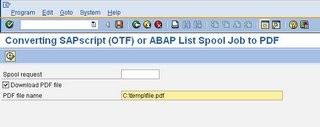 As
you can see from the screenshot above, this is a fairly simple program
to use. All you have to do is provide it a spool request ID.
As
you can see from the screenshot above, this is a fairly simple program
to use. All you have to do is provide it a spool request ID.
Example:
I will use the standard SAP delivered program "Entries and Leaves" (transaction: S_PH9_46000223 - EEs Entered and Left). Upon executing this transaction, I will get an ALV format output. Normally I would export this to MS Excel, however let say I would like to produce a PDF format instead.
From the menu bar, I would select List -> Print
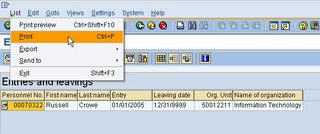
Upon printing, you will receive at the bottom of the screen a "Spool Request"

Using the spool request number, you would enter it into the program and execute. It is that simple!
There is a little known program available in SAP that will assist you in producing Adobe PDF output in most "standard" and "customized" SAP reports. The program is called "Converting SAPScript(OFT) or ABAP List Spool Job To PDF". You have to access it via transaction "SE38" or "SE80" using the program name "RSTXPDFT4".
Example:
I will use the standard SAP delivered program "Entries and Leaves" (transaction: S_PH9_46000223 - EEs Entered and Left). Upon executing this transaction, I will get an ALV format output. Normally I would export this to MS Excel, however let say I would like to produce a PDF format instead.
From the menu bar, I would select List -> Print
Upon printing, you will receive at the bottom of the screen a "Spool Request"
Using the spool request number, you would enter it into the program and execute. It is that simple!
SAP : Save Report Output to a PDF File
http://www.erpgenie.com/sap/abap/code/abap51.htm
This report takes another report as input, and captures the output of that report. The output is then converted to
PDF and saved to a local file. This shows how to use some of the PDF function modules, as well as an easy way to
create PDF files.

Source Code Listing
report zabap_2_pdf.
*-- Enhancements: only allow to be run with variant.  Then called
*-- program will be transparent to users
*-- TABLES
tables:
  tsp01.
*-- STRUCTURES
data:
  mstr_print_parms like pri_params,
  mc_valid(1)      type c,
  mi_bytecount     type i,
  mi_length        type i,
  mi_rqident       like tsp01-rqident.
*-- INTERNAL TABLES
data:
  mtab_pdf    like tline occurs 0 with header line,
  mc_filename like rlgrap-filename.
*-- SELECTION SCREEN
parameters:
  p_repid like sy-repid, " Report to execute
  p_linsz like sy-linsz default 132, " Line size
  p_paart like sy-paart default 'X_65_132'.  " Paper Format
start-of-selection.
concatenate 'c:\'
            p_repid
            '.pdf'
  into mc_filename.
*-- Setup the Print Parmaters
  call function 'GET_PRINT_PARAMETERS'
   exporting
     authority= space
     copies   = '1'
     cover_page                   = space
     data_set = space
     department                   = space
     destination                  = space
     expiration                   = '1'
     immediately                  = space
     in_archive_parameters        = space
     in_parameters                = space
     layout   = space
     mode     = space
     new_list_id                  = 'X'
     no_dialog= 'X'
     user     = sy-uname
   importing
     out_parameters               = mstr_print_parms
     valid    = mc_valid
   exceptions
     archive_info_not_found       = 1
     invalid_print_params         = 2
     invalid_archive_params       = 3
     others   = 4.
*-- Make sure that a printer destination has been set up
*-- If this is not done the PDF function module ABENDS
  if mstr_print_parms-pdest = space.
    mstr_print_parms-pdest = 'LOCL'.
  endif.
*-- Explicitly set line width, and output format so that
*-- the PDF conversion comes out OK
  mstr_print_parms-linsz = p_linsz.
  mstr_print_parms-paart = p_paart.
  submit (p_repid) to sap-spool without spool dynpro
                   spool parameters mstr_print_parms
                   via selection-screen
                   and return.
*-- Find out what the spool number is that was just created
  perform get_spool_number using sy-repid
             sy-uname
    changing mi_rqident.
*-- Convert Spool to PDF
  call function 'CONVERT_ABAPSPOOLJOB_2_PDF'
    exporting
      src_spoolid= mi_rqident
      no_dialog  = space
      dst_device = mstr_print_parms-pdest
    importing
      pdf_bytecount                  = mi_bytecount
    tables
      pdf        = mtab_pdf
    exceptions
      err_no_abap_spooljob           = 1
      err_no_spooljob                = 2
      err_no_permission              = 3
      err_conv_not_possible          = 4
      err_bad_destdevice             = 5
      user_cancelled                 = 6
      err_spoolerror                 = 7
      err_temseerror                 = 8
      err_btcjob_open_failed         = 9
      err_btcjob_submit_failed       = 10
      err_btcjob_close_failed        = 11
      others     = 12.
call function 'DOWNLOAD'
     exporting
          bin_filesize            = mi_bytecount
          filename                = mc_filename
          filetype                = 'BIN'
     importing
          act_filename            = mc_filename
     tables
          data_tab                = mtab_pdf.
*---------------------------------------------------------------------*
*       FORM get_spool_number *
*---------------------------------------------------------------------*
*       Get the most recent spool created by user/report              *
*---------------------------------------------------------------------*
*  -->  F_REPID               *
*  -->  F_UNAME               *
*  -->  F_RQIDENT             *
*---------------------------------------------------------------------*
form get_spool_number using f_repid
     f_uname
                changing f_rqident.
  data:
    lc_rq2name like tsp01-rq2name.
  concatenate f_repid+0(8)
              f_uname+0(3)
    into lc_rq2name separated by '_'.
  select * from tsp01 where  rq2name = lc_rq2name
  order by rqcretime descending.
    f_rqident = tsp01-rqident.
    exit.
  endselect.
  if sy-subrc ne 0.
    clear f_rqident.
  endif.
endform." get_spool_number
SAP : Convert ABAP List to PDF and display in PDF format
http://an-sap-consultant.blogspot.tw/2010/12/sap-convert-abap-list-to-pdf-and.html
REPORT zrich_0001.
DATA: lv_spool LIKE tsp01-rqident.
DATA: lt_pdf TYPE TABLE OF tline.
DATA: ls_pdf LIKE LINE OF lt_pdf.
DATA: lv_url TYPE char255.
DATA: lv_buffer TYPE string.
DATA: lv_content TYPE xstring.
DATA: lt_data TYPE STANDARD TABLE OF x255.
DATA: lo_dialog_container TYPE REF TO cl_gui_dialogbox_container.
DATA: lo_docking_container TYPE REF TO cl_gui_docking_container.
DATA: lo_html TYPE REF TO cl_gui_html_viewer.
FIELD-SYMBOLS TYPE x.
PARAMETERS: p_check.
AT SELECTION-SCREEN OUTPUT.
* Run the report program, in this program you need to export the
* spool id to memory.
SUBMIT zrich_0002 TO SAP-SPOOL
WITHOUT SPOOL DYNPRO
DESTINATION space
COVER TEXT ' Your Report Title'
NEW LIST IDENTIFICATION 'X'
IMMEDIATELY space
AND RETURN.
* import spool number from memory
IMPORT lv_spool = lv_spool FROM MEMORY ID 'ZRICH_0002_SPONO'.
* Convert the spool request to PDF format.
CALL FUNCTION 'CONVERT_ABAPSPOOLJOB_2_PDF'
EXPORTING
src_spoolid = lv_spool
TABLES
pdf = lt_pdf
EXCEPTIONS
err_no_abap_spooljob = 1
err_no_spooljob = 2
err_no_permission = 3
err_conv_not_possible = 4
err_bad_destdevice = 5
user_cancelled = 6
err_spoolerror = 7
err_temseerror = 8
err_btcjob_open_failed = 9
err_btcjob_submit_failed = 10
err_btcjob_close_failed = 11
OTHERS = 12.
* convert pdf to xstring string
LOOP AT lt_pdf INTO ls_pdf.
ASSIGN ls_pdf TO CASTING.
CONCATENATE lv_content INTO lv_content IN BYTE MODE.
ENDLOOP.
CREATE OBJECT lo_docking_container
EXPORTING
repid = sy-repid
dynnr = sy-dynnr
side = lo_docking_container->dock_at_right
extension = 1200.
CREATE OBJECT lo_html
EXPORTING
parent = lo_docking_container.
* Convert xstring to binary table to pass to the LOAD_DATA method
CALL FUNCTION 'SCMS_XSTRING_TO_BINARY'
EXPORTING
buffer = lv_content
TABLES
binary_tab = lt_data.
* Load the HTML
lo_html->load_data(
EXPORTING
type = 'application'
subtype = 'pdf'
IMPORTING
assigned_url = lv_url
CHANGING
data_table = lt_data
EXCEPTIONS
dp_invalid_parameter = 1
dp_error_general = 2
cntl_error = 3
OTHERS = 4 ).
* Show it
lo_html->show_url( url = lv_url in_place = 'X' ).
REPORT zrich_0001.
DATA: lv_spool LIKE tsp01-rqident.
DATA: lt_pdf TYPE TABLE OF tline.
DATA: ls_pdf LIKE LINE OF lt_pdf.
DATA: lv_url TYPE char255.
DATA: lv_buffer TYPE string.
DATA: lv_content TYPE xstring.
DATA: lt_data TYPE STANDARD TABLE OF x255.
DATA: lo_dialog_container TYPE REF TO cl_gui_dialogbox_container.
DATA: lo_docking_container TYPE REF TO cl_gui_docking_container.
DATA: lo_html TYPE REF TO cl_gui_html_viewer.
FIELD-SYMBOLS TYPE x.
PARAMETERS: p_check.
AT SELECTION-SCREEN OUTPUT.
* Run the report program, in this program you need to export the
* spool id to memory.
SUBMIT zrich_0002 TO SAP-SPOOL
WITHOUT SPOOL DYNPRO
DESTINATION space
COVER TEXT ' Your Report Title'
NEW LIST IDENTIFICATION 'X'
IMMEDIATELY space
AND RETURN.
* import spool number from memory
IMPORT lv_spool = lv_spool FROM MEMORY ID 'ZRICH_0002_SPONO'.
* Convert the spool request to PDF format.
CALL FUNCTION 'CONVERT_ABAPSPOOLJOB_2_PDF'
EXPORTING
src_spoolid = lv_spool
TABLES
pdf = lt_pdf
EXCEPTIONS
err_no_abap_spooljob = 1
err_no_spooljob = 2
err_no_permission = 3
err_conv_not_possible = 4
err_bad_destdevice = 5
user_cancelled = 6
err_spoolerror = 7
err_temseerror = 8
err_btcjob_open_failed = 9
err_btcjob_submit_failed = 10
err_btcjob_close_failed = 11
OTHERS = 12.
* convert pdf to xstring string
LOOP AT lt_pdf INTO ls_pdf.
ASSIGN ls_pdf TO CASTING.
CONCATENATE lv_content INTO lv_content IN BYTE MODE.
ENDLOOP.
CREATE OBJECT lo_docking_container
EXPORTING
repid = sy-repid
dynnr = sy-dynnr
side = lo_docking_container->dock_at_right
extension = 1200.
CREATE OBJECT lo_html
EXPORTING
parent = lo_docking_container.
* Convert xstring to binary table to pass to the LOAD_DATA method
CALL FUNCTION 'SCMS_XSTRING_TO_BINARY'
EXPORTING
buffer = lv_content
TABLES
binary_tab = lt_data.
* Load the HTML
lo_html->load_data(
EXPORTING
type = 'application'
subtype = 'pdf'
IMPORTING
assigned_url = lv_url
CHANGING
data_table = lt_data
EXCEPTIONS
dp_invalid_parameter = 1
dp_error_general = 2
cntl_error = 3
OTHERS = 4 ).
* Show it
lo_html->show_url( url = lv_url in_place = 'X' ).
REPORT  ZRICH_0002
        line-count 65
        LINE-SIZE  80.

DATA: lv_spool LIKE tsp01-rqident.
data: lv_value type i.

START-OF-SELECTION .

* Write the report.
  DO 20 TIMES.
    lv_value = sy-index * 10.
    WRITE:/ sy-index, at 20 lv_value.
  ENDDO.

* Export this spool number to memory
  lv_spool = sy-spono.
  EXPORT lv_spool = lv_spool TO MEMORY ID 'ZRICH_0002_SPONO'.
訂閱:
意見 (Atom)